
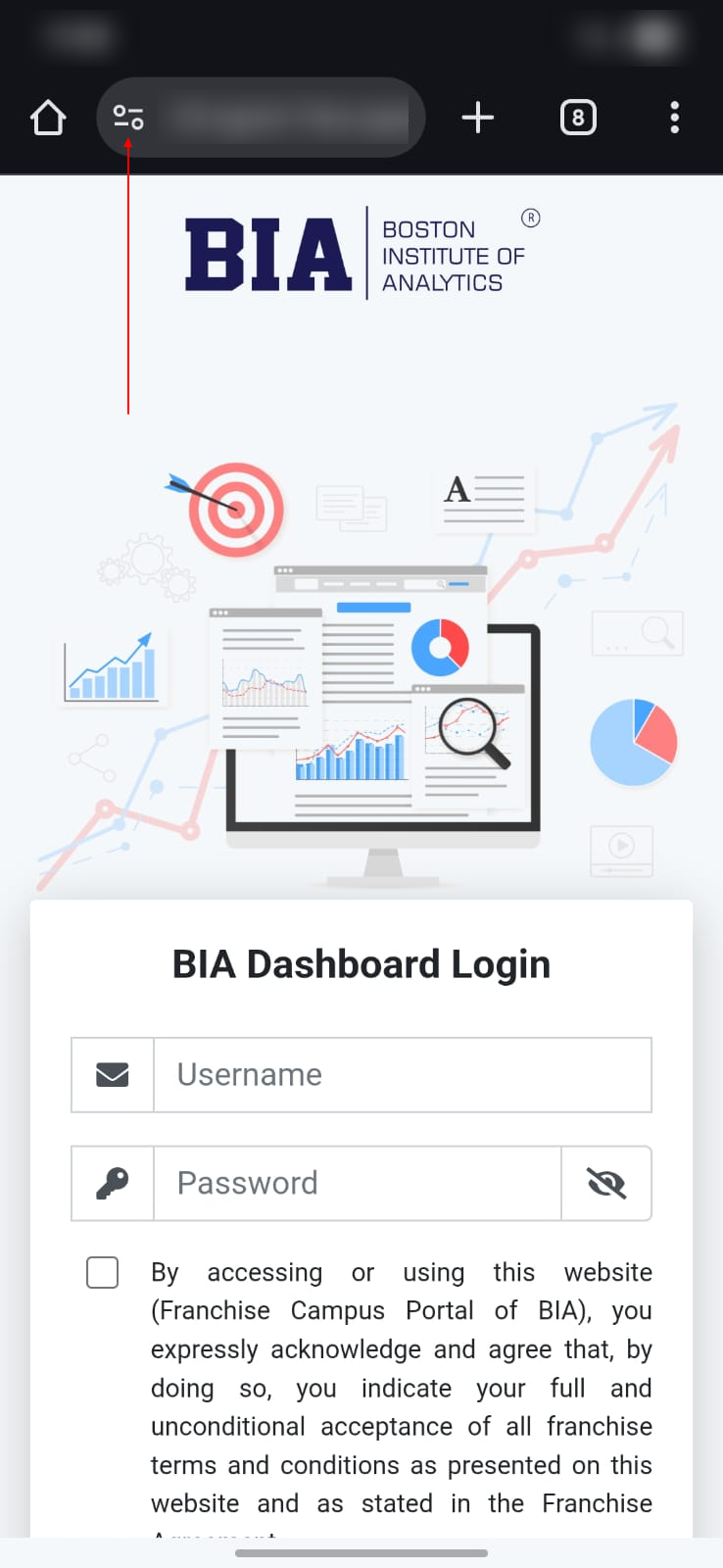
BIA Dashboard Login

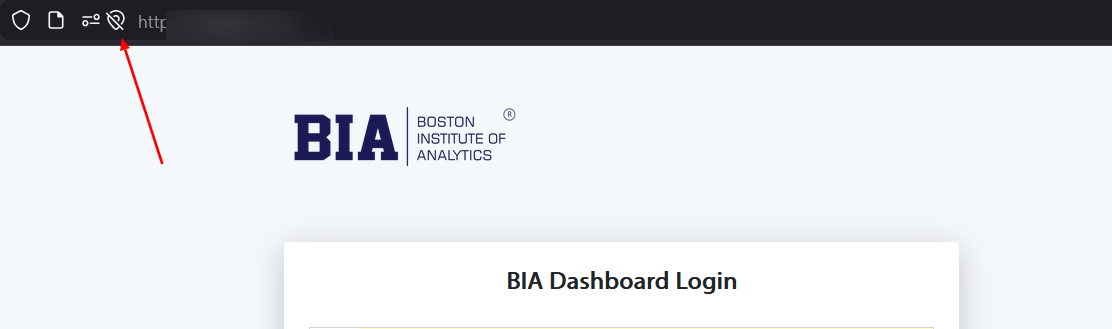
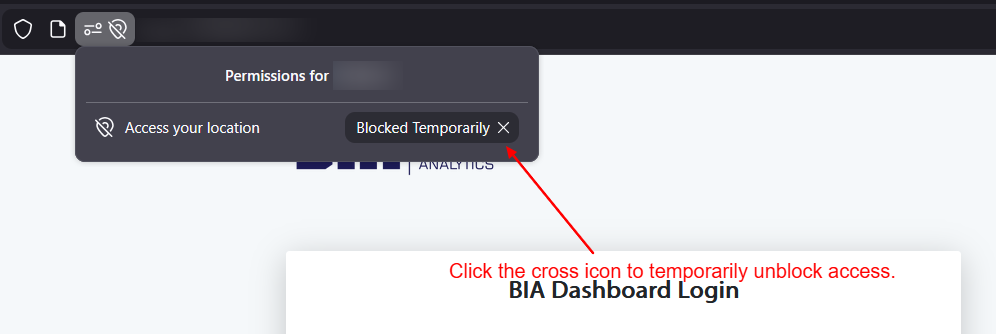
Your system or browser location access is currently DISABLED. Select your browser and follow the steps.

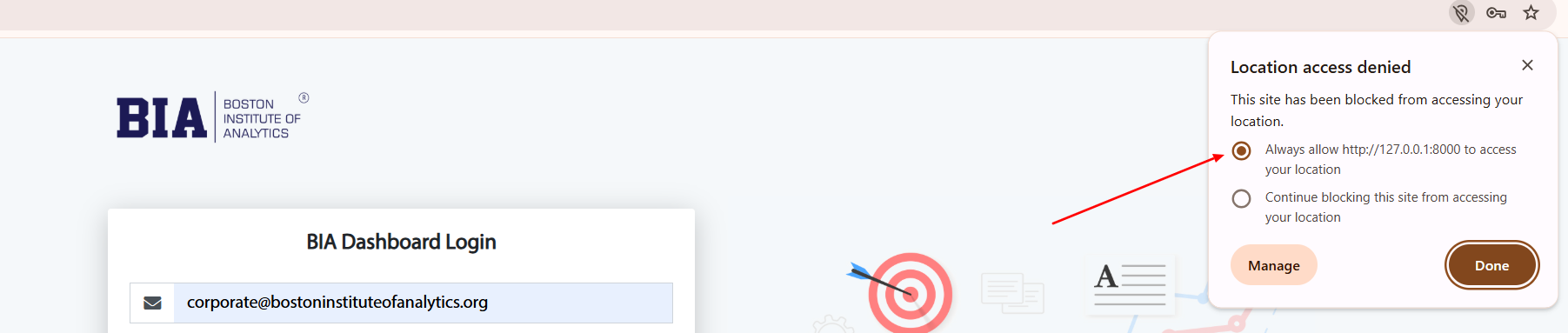
Select Always allow this site and click Done
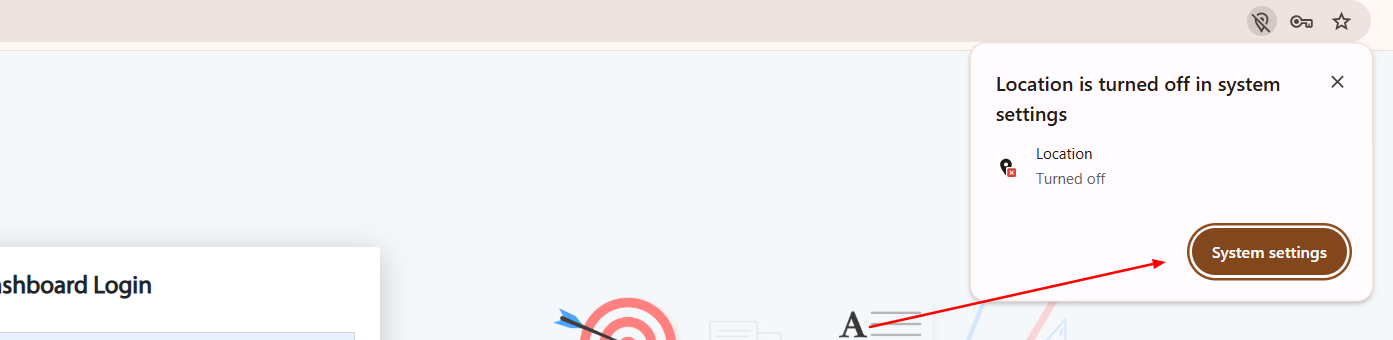
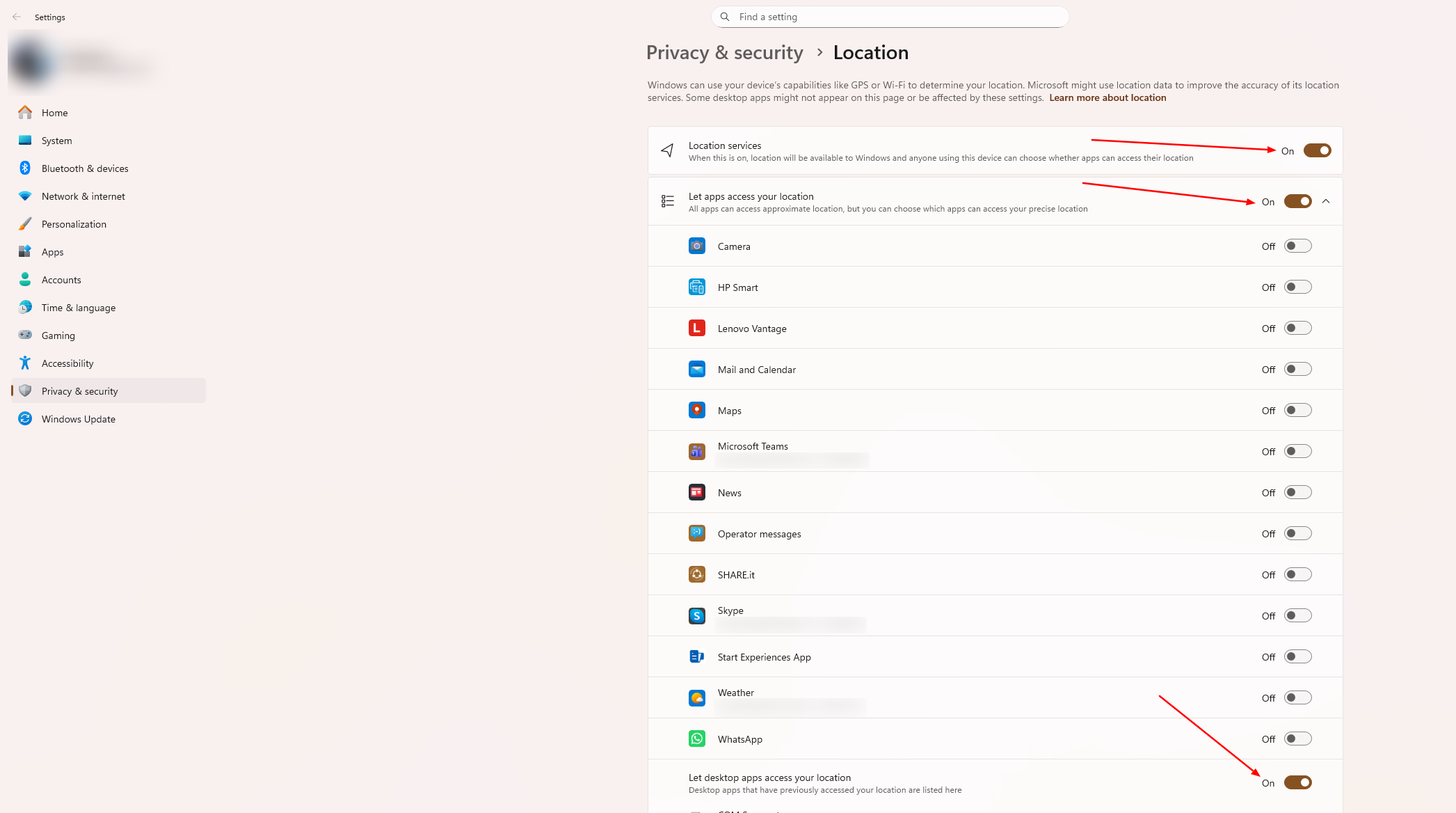
Windows: Turn ON location access
macOS: Enable location for Chrome
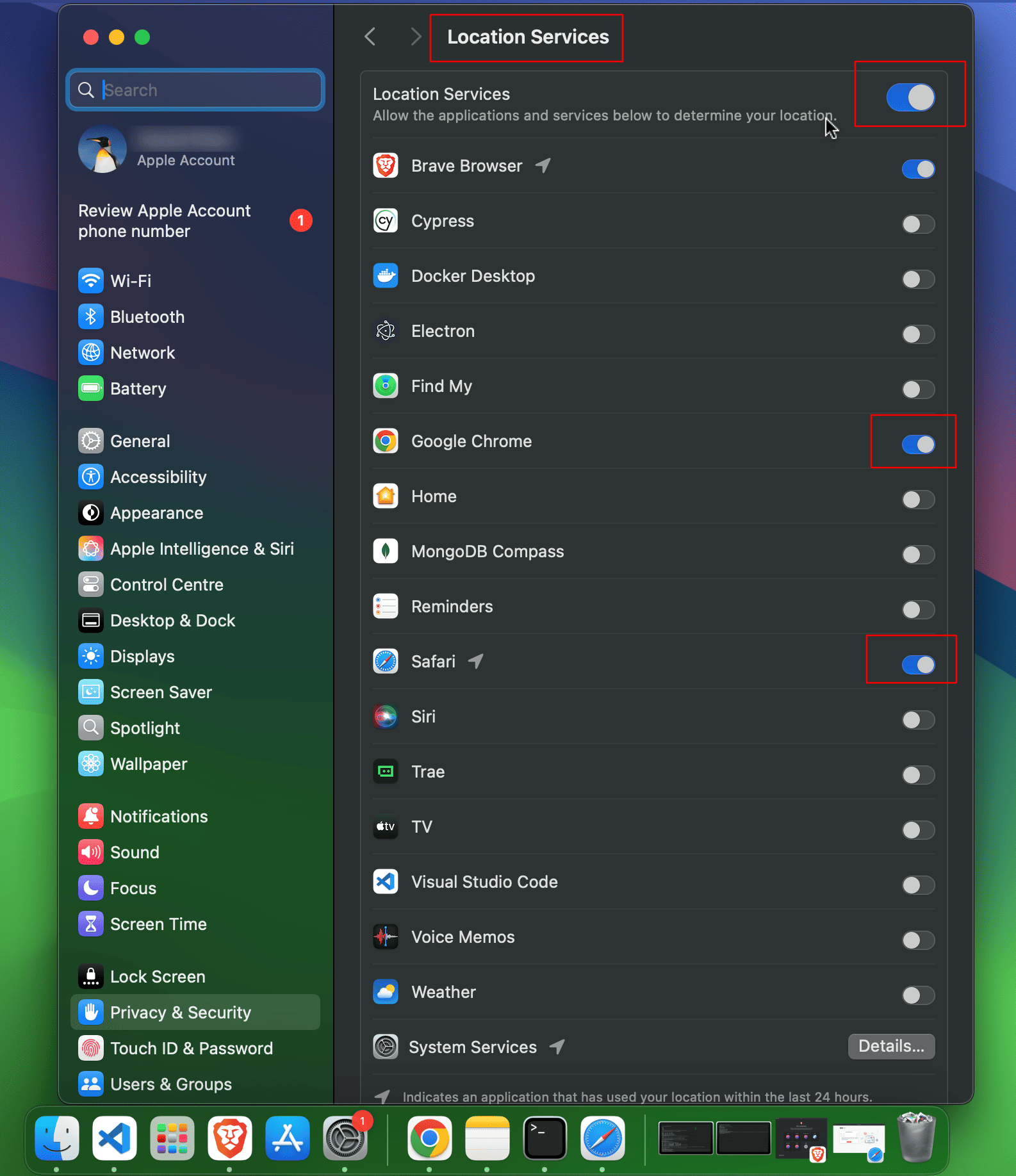
System Settings: Please ensure Location Services are enabled in your system's privacy settings.



Windows: Turn ON location access
macOS: Enable location for Chrome
System Settings: Please ensure Location Services are enabled in your system's privacy settings.
Windows: Turn ON location access
macOS: Enable location for Chrome
System Settings: Please ensure Location Services are enabled in your system's privacy settings.
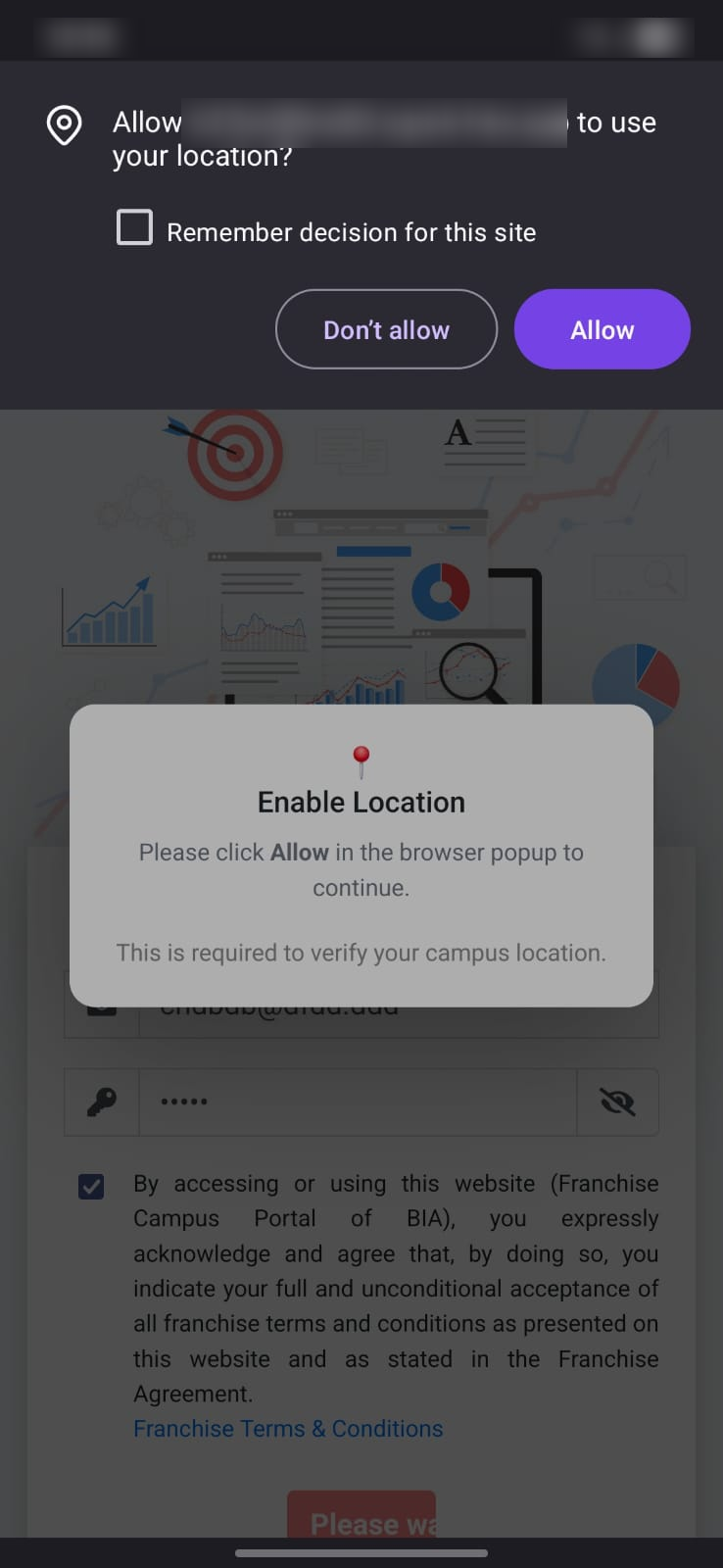
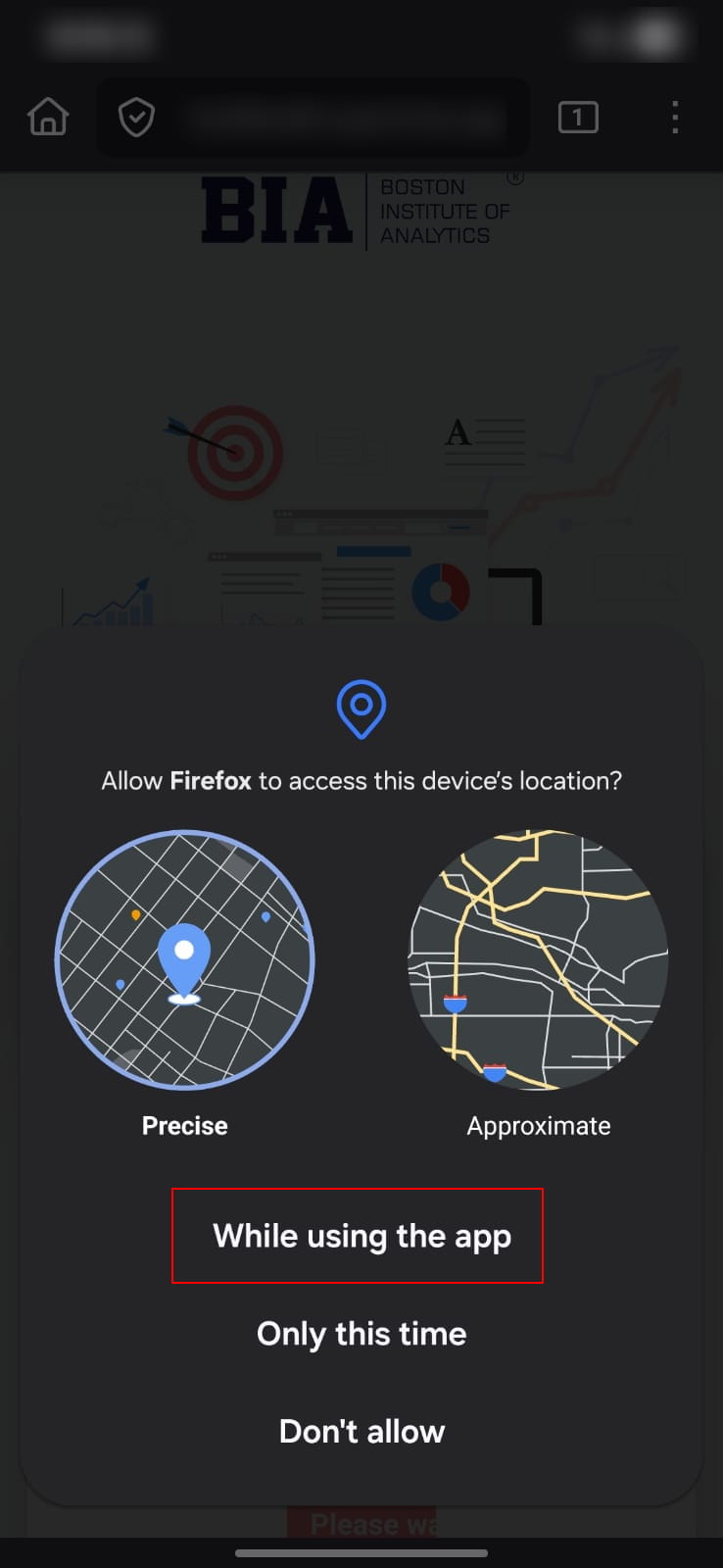
This popup appears automatically after you tap Login.
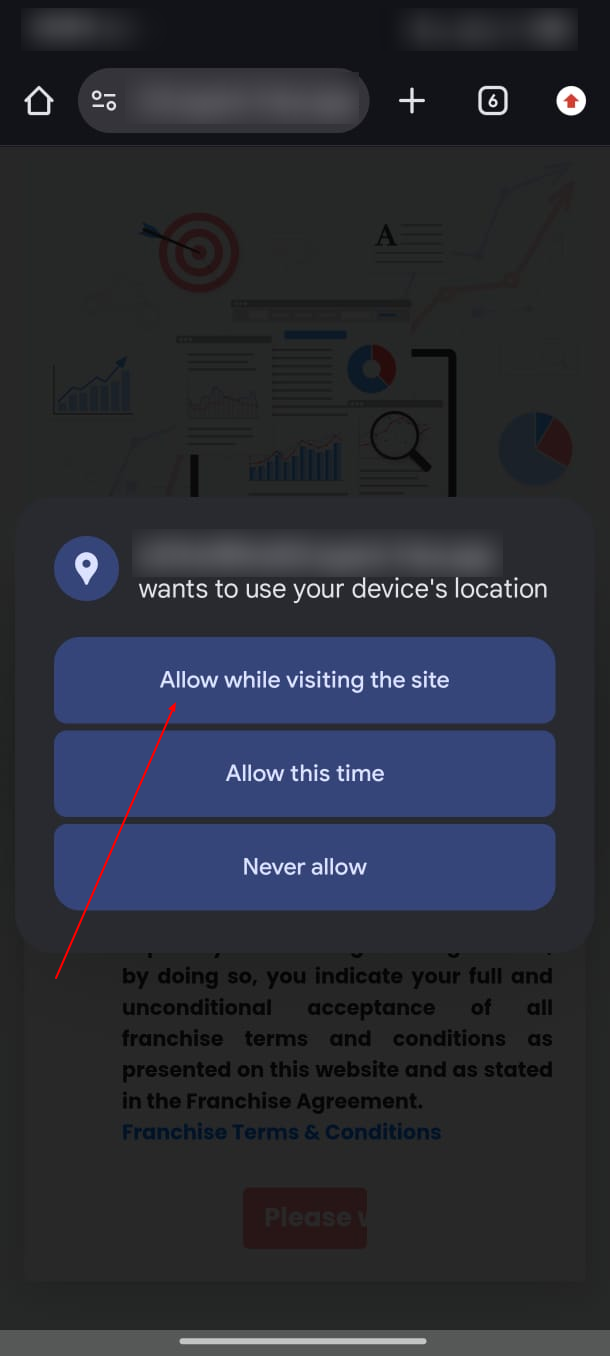
Choosing this prevents repeated permission requests during future logins.
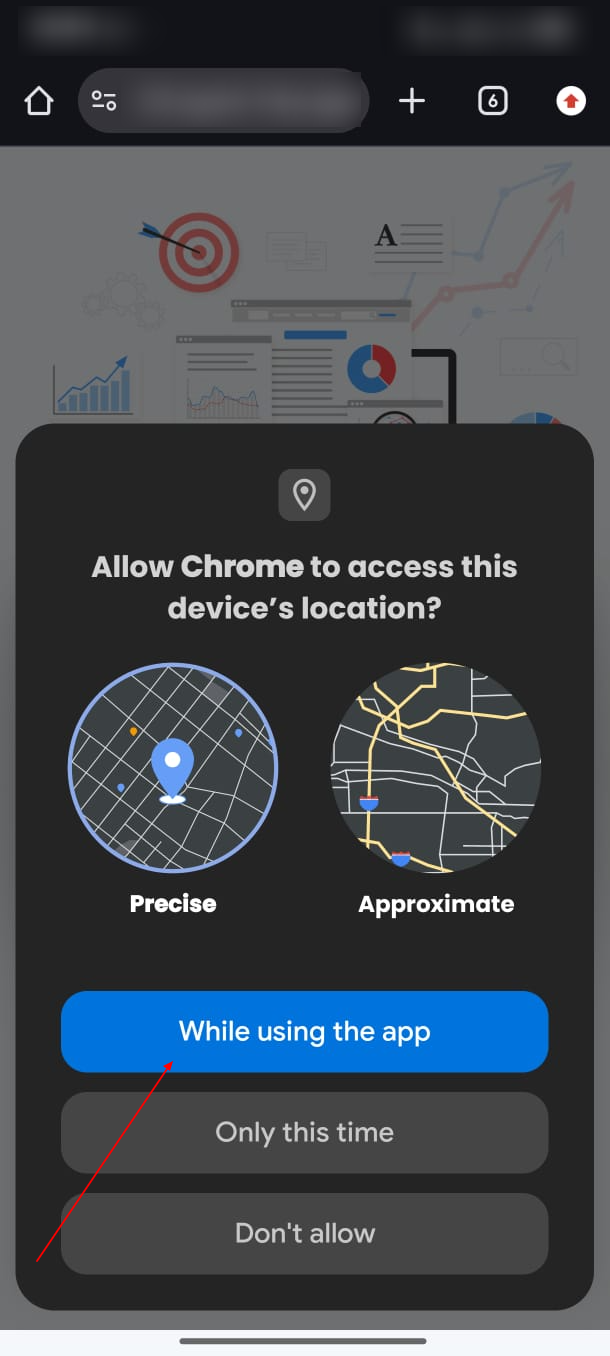
This popup appears automatically after you tap Login.
This keeps location enabled for future sessions.
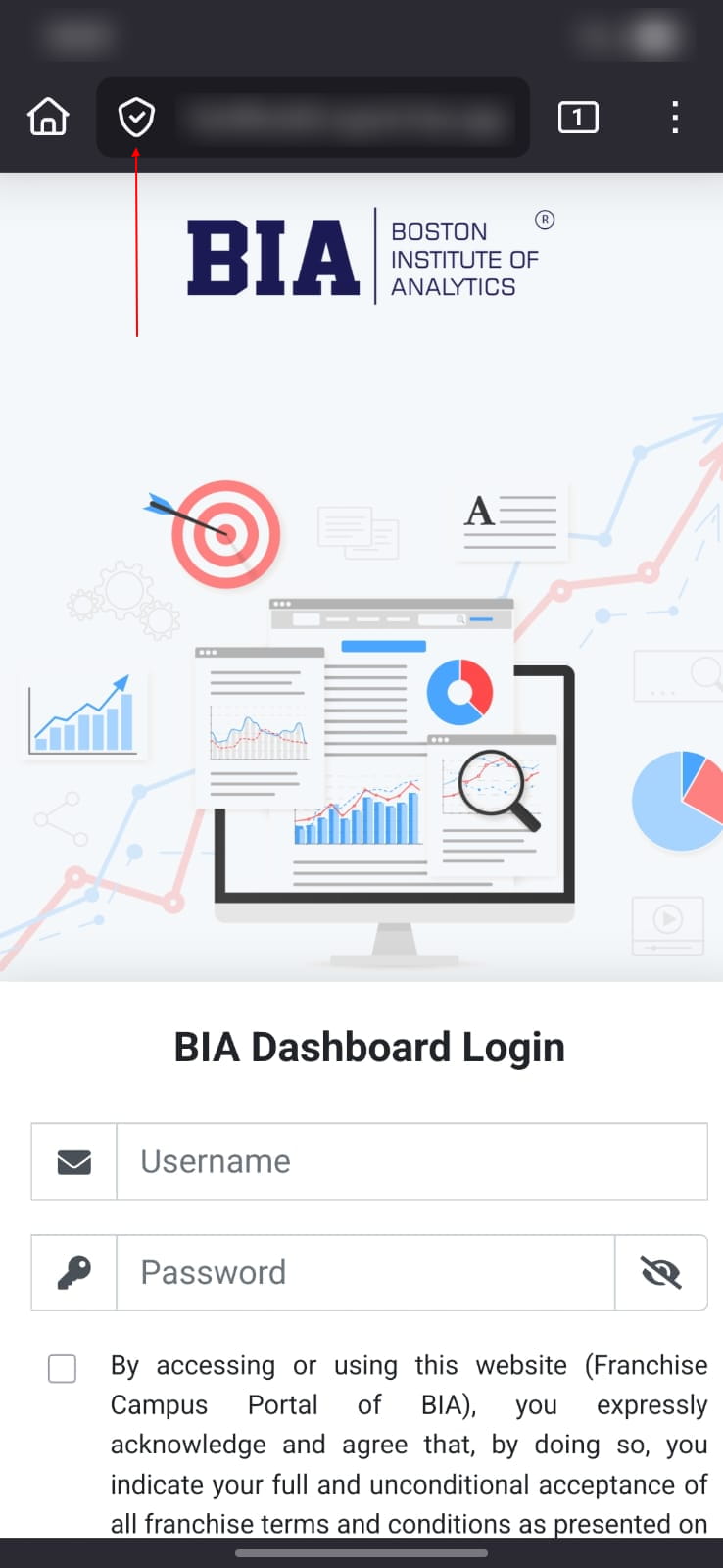
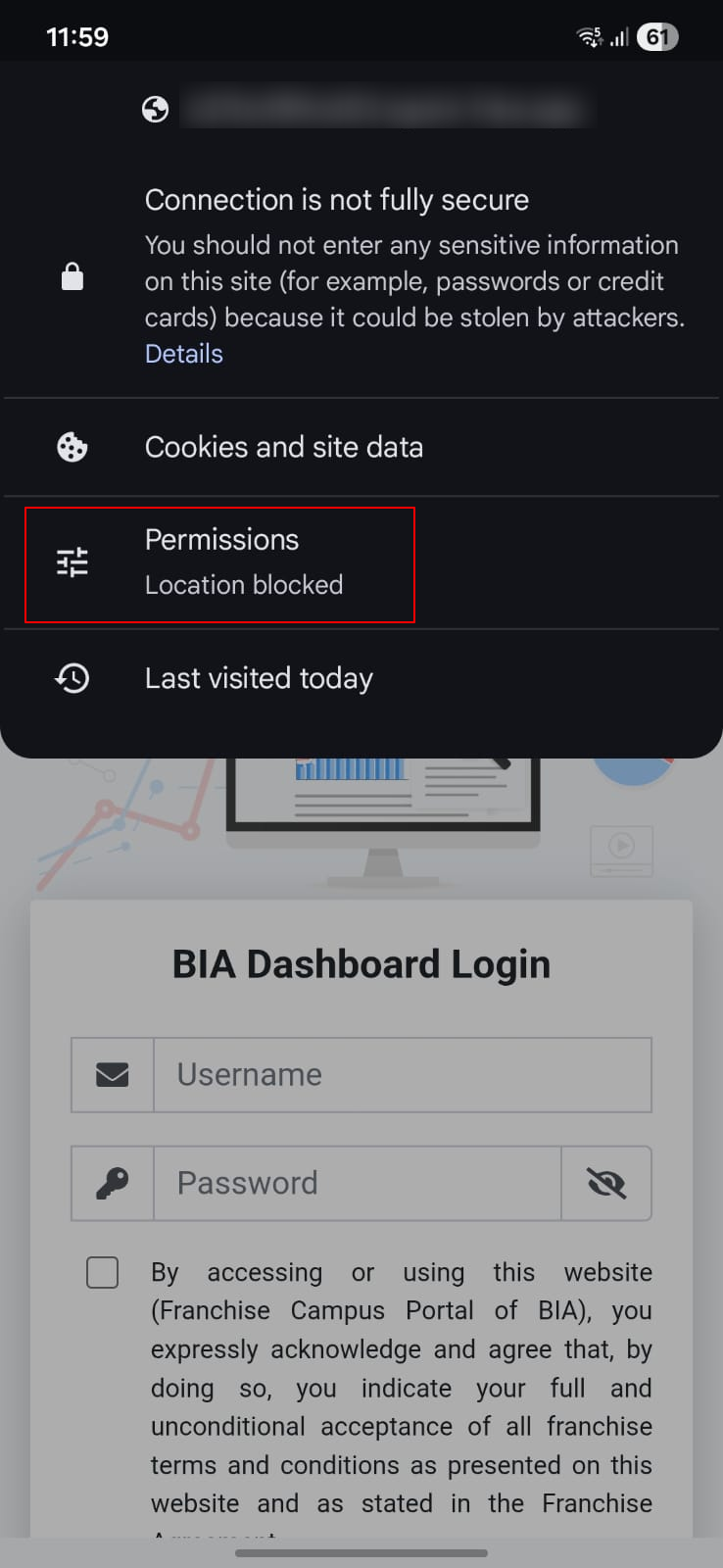
Look for a lock icon, AA, or settings icon in your browser's address bar.
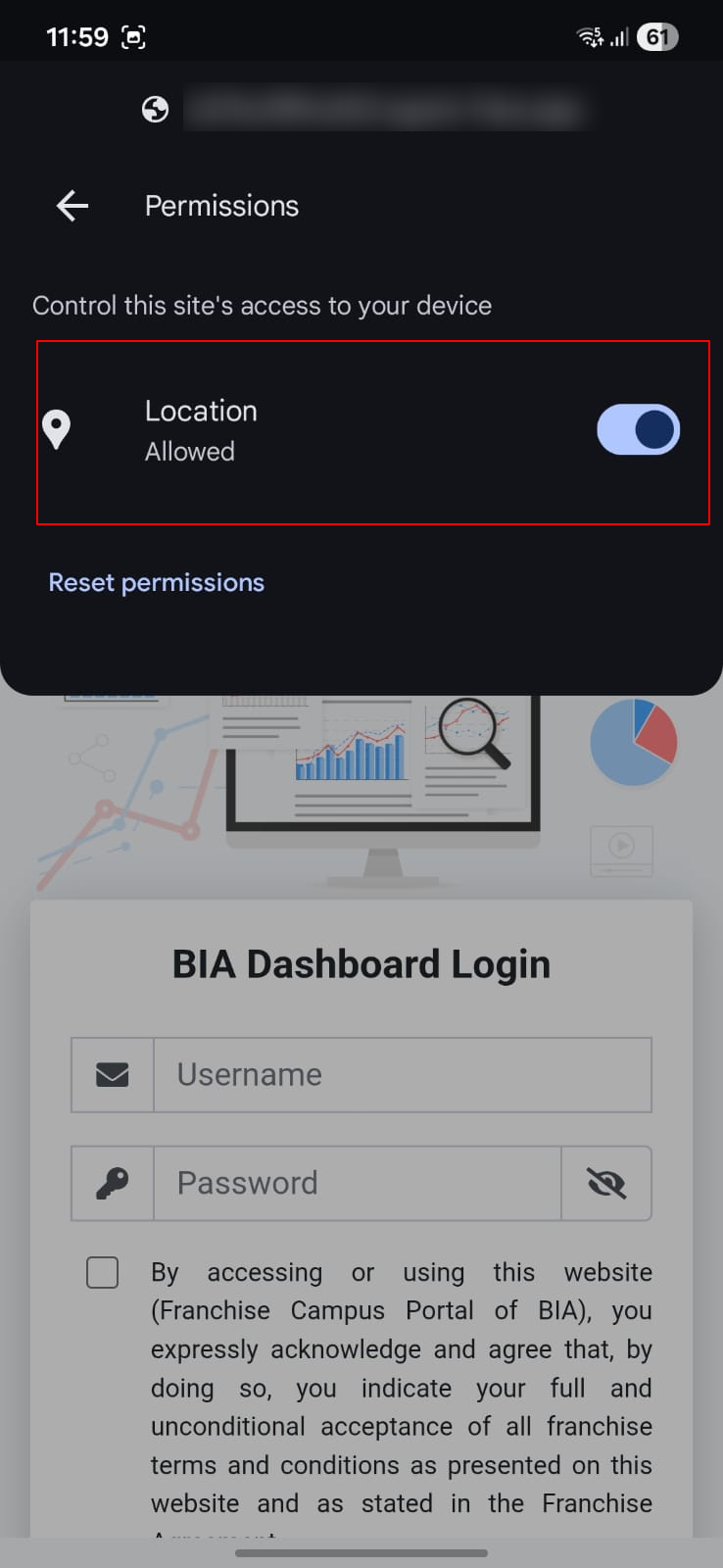
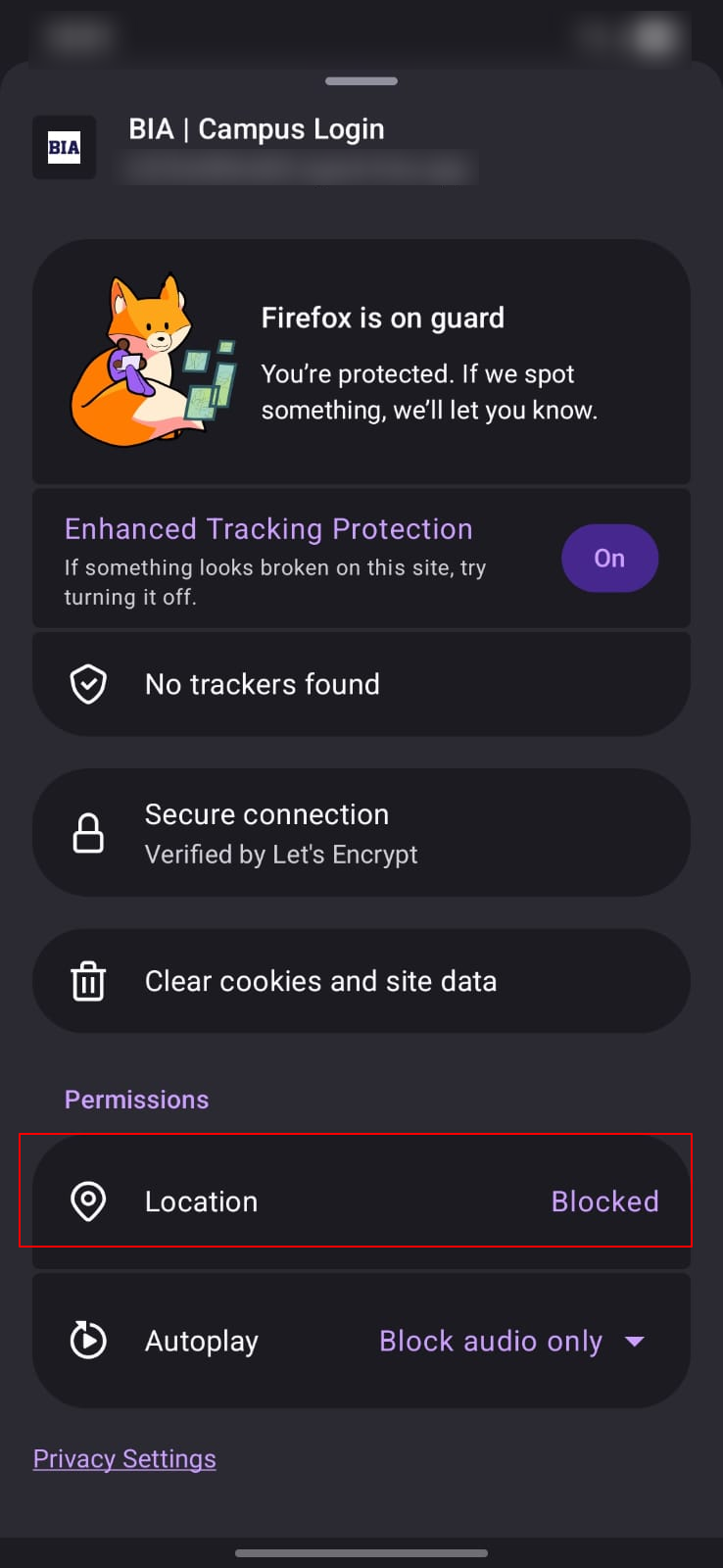
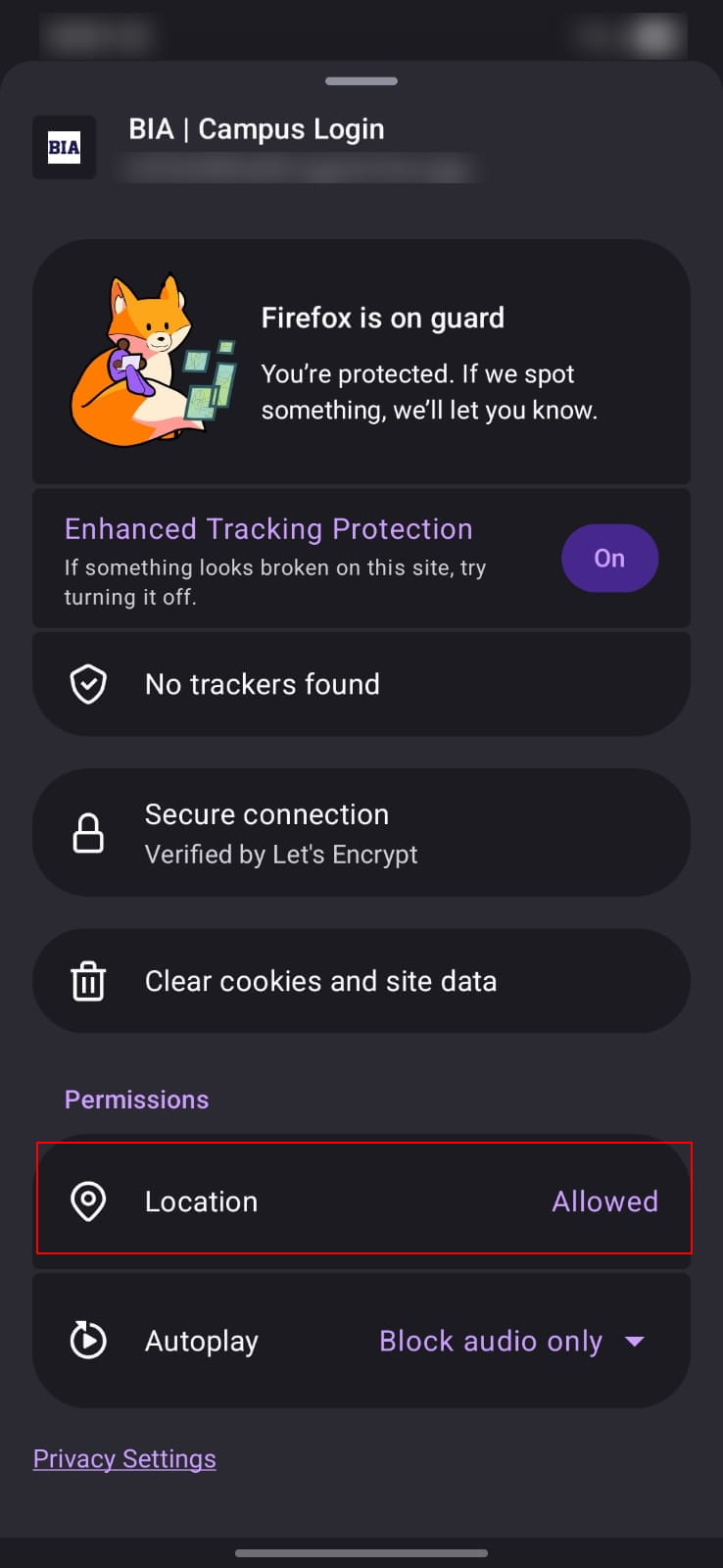
Tap the icon and ensure Location is set to Allow or Ask.
If still blocked, go to your phone's Settings > Privacy > Location Services and ensure your browser has permission to access your location.
Please click Allow in the browser popup to continue.